Table of Contents
In India, a customer rarely sends an email to ask the price of something. They send a message on WhatsApp. Shops, clinics, tutors, boutiques, caterers and service providers already take orders and answer questions on WhatsApp every day. But many of them still use a normal personal WhatsApp account, which means mixed chats, lost enquiries, repeated typing and an unprofessional look.
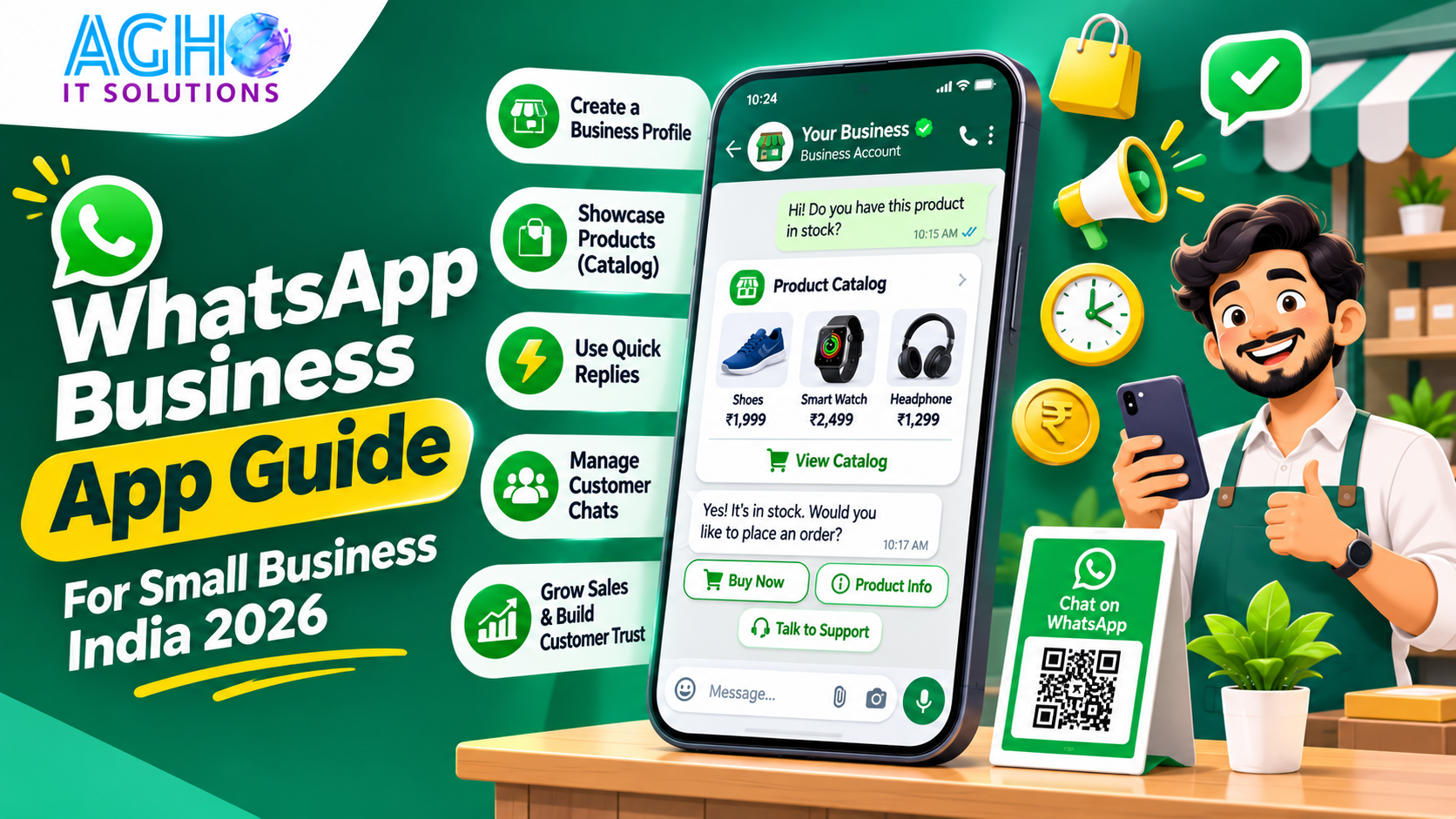
The free WhatsApp Business app fixes most of this. This guide explains what it is, how to set it up properly and how to use each feature to save time and win more orders.
WhatsApp vs WhatsApp Business App vs WhatsApp Business API
- Normal WhatsApp: For personal chats. No business profile, no catalog and no automatic messages.
- WhatsApp Business app: A free app for small businesses, available on Android and iPhone. It adds a business profile, catalog, quick replies, automatic messages, labels or lists and more. It is meant for a business that handles chats with a person or a small team.
- WhatsApp Business API: A paid solution through approved providers, meant for larger businesses that need chatbots, many agents, automation and bulk messaging. Read our guide on WhatsApp Business API for Indian businesses.
Most small businesses should start with the free Business app and move to the API only when the volume of chats grows.
Step 1 Set Up Your Business Profile
- Download the WhatsApp Business app and register with your business number. It is best to use a separate number for business, not your personal one.
- Add your business name exactly as customers know it.
- Choose the most suitable business category.
- Add your address, working hours, email, website and a short description of what you offer.
- Add a clear profile picture such as your logo. See our guide on logo design in India.
- Keep your details the same as on your Google Business Profile. See our guide on Google Business Profile optimization for Lucknow businesses.
Step 2 Build Your Catalog
The catalog is a small shop window inside WhatsApp. Customers can browse your products or services without leaving the chat.
- Add each item with a clear photo, name, price, description and a product code if you use one.
- Group items into collections, such as Kurtas, Sweets or Services.
- Use bright photos on a clean background.
- Share the full catalog or a single item link in any chat.
- Keep prices and availability updated, because customers trust what they see.
A catalog is especially useful for retail, food, fashion, gifts and service packages. For ideas on selling in chat, read our guide on WhatsApp commerce in India.
Step 3 Save Quick Replies
Quick replies are saved messages that you can insert by typing a slash and a shortcut. They save a huge amount of time on repeated questions.
Good quick replies to create:
- Price and package details
- Business hours and address with a map link
- How to order and pay
- Delivery time and charges
- Return and exchange policy
- Thank you after an order
- Review request
Example of a price enquiry reply:
Thank you for your interest. Our starting price for this service is shown in the attached list. If you share your requirement, we will suggest the best option for you.
Step 4 Turn On Greeting and Away Messages
- Greeting message: Sent automatically when someone messages you for the first time, or after a long gap. Use it to welcome people and tell them how you can help.
- Away message: Sent automatically outside your working hours, or when you are busy. Use it to tell customers when you will reply.
Example of a greeting message:
Namaste, welcome to our business. Please tell us what you are looking for and we will reply shortly. You can also see our products in the catalog on our profile.
Keep these messages short and friendly. Remember that the app supports these simple automatic messages, but it does not replace a real conversation.
Step 5 Organize Chats with Labels or Lists
Depending on your app version, you will see labels or lists. Use them to mark chats, such as New Enquiry, Waiting for Payment, Order Confirmed, Delivered and Follow Up. This stops leads from being forgotten and helps you see what needs attention. Update the labels each day, and spend a few minutes at the end of the day on the Follow Up group.
Step 6 Create a Link and QR Code
Your WhatsApp Business account can give you a short link and a QR code that open a chat with your business, with an optional ready message. Put them in the places where customers already look.
- Your Instagram bio and Facebook page
- Your Google Business Profile and website
- Your visiting cards, bills, packaging and shop window
- Your posters, flyers and standees. Our team can design posters, flyers and business cards with your QR code.
A pre written message such as “Hello, I saw your offer and want to know more” helps you know where the customer came from.
Step 7 Use WhatsApp Status for Offers
Status updates disappear after a day, which makes them perfect for daily offers, new arrivals, festival greetings and behind the scenes moments. Many customers check Status regularly, so a good photo with a short line can bring in enquiries.
Step 8 Use Broadcasts Carefully
Broadcast lists let you send one message to many contacts at once. Use them for offers, new arrivals and important updates, but follow these rules.
- Send only to customers who have saved your number and agreed to hear from you.
- Keep messages short, useful and not too frequent.
- Add an easy way for people to say they do not want updates.
- Remember that the Business app has limits on how many contacts you can reach, and that sending unwanted messages can get your number blocked.
If you need to message a larger audience, use the official platform through a trusted provider. See our guide on WhatsApp marketing versus SMS marketing and our bulk WhatsApp marketing service.
Step 9 Let a Team Use It
You can use WhatsApp Business on a computer through the desktop or web version, which makes typing and sharing files easier. For more than a few people sharing one number, a larger system with multiple agents may work better, which is where the API and a CRM software come in.
How to Get Customers to Message You
- Add click to WhatsApp buttons on your website. See our website development service.
- Run click to WhatsApp ads on Facebook and Instagram. Learn the basics in our guide on Meta ads versus Google ads.
- Share your WhatsApp link in your social media profiles and posts. See our guide on Instagram marketing for small business.
- Print the QR code at your shop and on every parcel.
Reply Fast and Sound Human
- Reply within minutes during working hours. Fast replies win orders.
- Use the name of the customer.
- Use short messages, photos and voice notes when it helps.
- Avoid sending the same copied message to everyone.
- Confirm orders and delivery details in writing.
- Always keep a way for a real person to help with complaints.
Privacy and Safety Tips
- Do not share customer phone numbers or personal details with others.
- Never ask for passwords, OTPs or card PINs in chat.
- Warn customers about fake payment links, and share only your real payment details.
- Back up your chats and keep your phone secure.
Read our guides on India data protection rules for businesses and how to protect your business from cyber attacks.
Ideas for Different Businesses
- Restaurants and cafes: Menu catalog, order confirmation and delivery updates. See our guide on restaurant and cafe marketing in Lucknow.
- Clinics and labs: Appointment reminders and report sharing, with patient privacy respected.
- Coaching centers and schools: Notices, fee reminders and parent updates.
- Boutiques and shops: Catalog, new arrival photos and order confirmations.
- Service businesses: Quotes, bookings and follow ups.
- Wedding and event vendors: Packages, availability and booking confirmations.
A Simple 7 Day Setup Plan
- Day 1: Install the app with a business number and complete your profile.
- Day 2: Add your first ten catalog items with good photos.
- Day 3: Save ten quick replies.
- Day 4: Set your greeting and away messages.
- Day 5: Create your labels and sort your current chats.
- Day 6: Create your link and QR code and place them on your bio, website and shop.
- Day 7: Post your first Status offer and review what worked.
Common Mistakes to Avoid
- Using a personal number for business.
- Leaving the profile and catalog incomplete.
- Sending bulk messages to people who did not agree to receive them.
- Ignoring labels and losing track of leads.
- Replying very late.
- Sharing private customer information.
- Trying to run a large team from one phone.
Get Help with WhatsApp for Your Business
At Agho IT Solutions in Lucknow, we help businesses with WhatsApp marketing, SMS marketing, website development and complete digital marketing services.
Call us on +91-9194046587 or visit us at L-III/77, Sector-D, Aliganj, Lucknow, Uttar Pradesh 226024. You can also contact us online for a free consultation.
Frequently Asked Questions
Is the WhatsApp Business app free?
Yes. The app is free to download and use, including the business profile, catalog, quick replies and automatic greeting and away messages.
Can I use the same number on normal WhatsApp and WhatsApp Business?
An account can be linked to one app at a time on one number. Most businesses use a separate number for the Business app to keep personal and work chats apart.
Can I send bulk messages with the Business app?
You can send broadcasts to contacts who have saved your number, but there are limits and rules. For large campaigns, use the official platform through a trusted provider and send only to people who agreed to receive messages.
Can more than one person use the same WhatsApp Business account?
You can use the app on a phone and also on a computer. For a larger team that needs many agents and automation, a platform built on the WhatsApp Business API is a better choice.
What is the difference between WhatsApp Business and the API?
The Business app is free and meant for simple one to one chats. The API is for larger businesses that need chatbots, automation, multiple agents and bulk messaging, and it works through approved providers.
Will my number get blocked?
It can be if customers report your messages as unwanted or if you break the rules. Send only to people who want to hear from you, keep messages relevant and give an easy way to stop messages.
Frequently Asked Questions
Quick answers to common questions about this article and our technology solutions.
01
Digital Marketing & Business
Are there any limits on Support?
With valid entitlement, there are no limits on the number of questions, who asks the question, or the topic (as long as it is reasonably related to the product). There is a 16-hour limit on the effort Arm spends on an individual case before requiring a management review of the case.
02
Digital Marketing & Business
What is the recruitment and interview process at AGHO IT Solutions?
Our interview process typically includes: 1) Initial profile screening and shortlisting by HR, 2) Technical interview / practical assignment, 3) Cultural and leadership discussion with department heads, and 4) Final offer letter rollout.
03
Digital Marketing & Business
Do you serve clients outside Lucknow?
Yes, we serve clients across Uttar Pradesh including Barabanki, Hardoi, Unnao, Sitapur and Raebareli and many more . We also serve international clients in UAE, US and Canada.
04
Digital Marketing & Business
Can I apply if my skills match multiple positions?
Yes! You can apply for a specific role or choose "General Application" from the positions dropdown. Our talent acquisition team will evaluate your resume against all active and upcoming openings.
Turn Your Vision Into a Scalable Software Solution
Whether you need Hospital Management Software, Cloud ERP, High-Converting Website, or Mobile App — get free technical architecture consultation with our engineering team.